When you hand a site over to a client, what the client sees every day is not the website: it is the panel where they edit. If that panel says Payload, with Payload's colors and logo, it feels like someone else's tool that somebody installed for them. If it carries their brand, or yours, it is their panel. Payload lets you change almost everything, and the license (MIT) allows it.
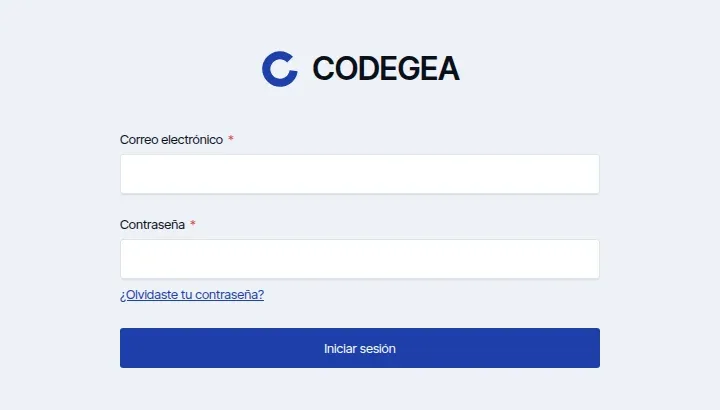
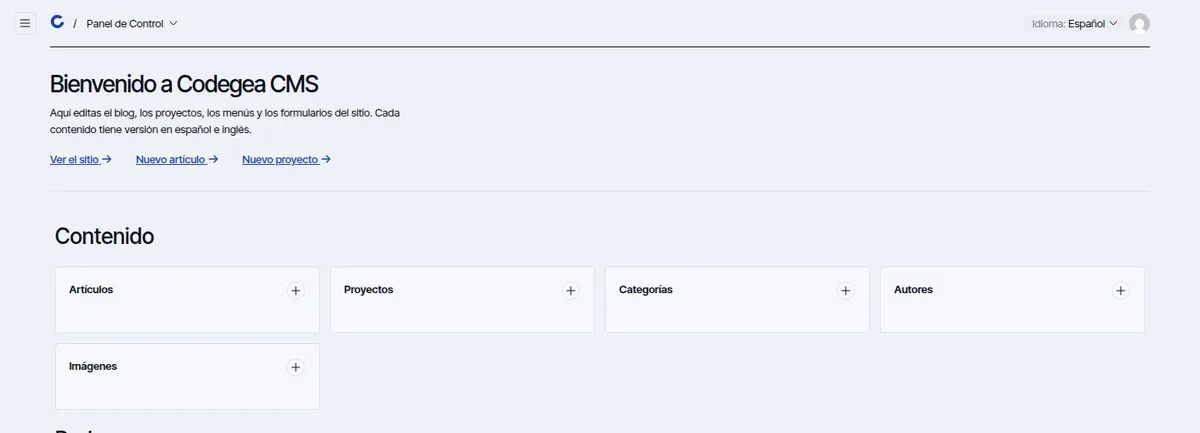
This is what we did with this site's panel. What you see in the screenshots is the real codegea.com admin, running locally.
What we changed
Five things, from most to least visible:
- The logo and the icon (top left, on the login and in the panel).
- The colors and the typography.
- The tab title, the favicon and the image shown when the link is shared.
- A welcome screen with shortcuts.
- The text of the menu and the interface.
This is the login screen:
And the panel, with the welcome block and the menu:
Step 1: the tab title and favicon
In payload.config.ts, inside admin.meta:
admin: {
  meta: {
    titleSuffix: '· Codegea CMS',
    description: 'Content panel for codegea.com',
    icons: [
      { rel: 'icon', url: '/favicon.ico' },
      { rel: 'icon', type: 'image/png', sizes: '32x32', url: '/favicon-32x32.png' },
      { rel: 'apple-touch-icon', url: '/apple-touch-icon.png' },
    ],
    openGraph: {
      title: 'Codegea CMS',
      siteName: 'Codegea CMS',
      images: [{ url: '/og-codegea-2026.jpg', width: 1200, height: 630 }],
    },
    twitter: { title: 'Codegea CMS' },
  },
},
titleSuffix is what appears at the end of every tab: "Posts · Codegea CMS". The openGraph part matters more than it seems: if someone pastes the panel's address into WhatsApp, your image shows up and not somebody else's.
Step 2: the logo and icon
Payload lets you replace two graphic components. You give it the path to your component, in the path#ExportedName format:
admin: {
  components: {
    graphics: {
      Logo: '/components/admin/logo#Logo',
      Icon: '/components/admin/icon#Icon',
    },
  },
},
The logo is a normal React component. Ours draws the isotype in SVG with the name beside it:
export const Logo = () => (
  <div className="cg-logo">
    <Isotype size={40} />
    <span>Codegea</span>
  </div>
);
The icon is the small version, the one that appears in the top bar next to the breadcrumbs. After adding any new component, you have to regenerate the panel's import map:
pnpm generate:importmapIf you forget, your component doesn't show up. It is the most common mistake.
Step 3: colors and typography
Payload exposes its look as CSS variables. The panel layout imports a custom.css file, and that is where yours goes. We override three groups of variables.
First, the typography and the brand palette:
:root {
  --font-body: 'Inter Tight', system-ui, sans-serif;
  --cg-cobalt: #1e3faa;
  --cg-cobalt-dark: #16317f;
  --cg-ink: #0b0f1a;
  --cg-paper: #eef1f7;
}
Then, the backgrounds and text of the light and dark themes, which Payload paints with the --theme-* variables:
html[data-theme='light'] {
  --theme-bg: var(--cg-paper);
  --theme-elevation-0: #fff;
  --theme-elevation-50: #f6f8fc;
  --theme-text: var(--cg-ink);
}

html[data-theme='dark'] {
  --theme-bg: var(--cg-ink);
  --theme-elevation-0: #0b0f1a;
  --theme-elevation-800: #eef1f7;
}
Finally, the color of primary buttons and links:
.btn--style-primary {
  --bg-color: var(--cg-cobalt);
  --color: #fff;
  --hover-bg: var(--cg-cobalt-dark);
}

a:not([class]) {
  color: var(--cg-cobalt);
}
It is the quickest part and the one that changes the look the most: with those few variables, the whole panel goes from the factory gray to the brand's paper and cobalt. Always define both variants, light and dark; if you only do one, whoever uses dark mode will see half the panel in one color and half in another.
Step 4: a welcome block with shortcuts
Payload lets you mount your own components before the dashboard. Ours is a header with a sentence and three links: view the site, create a post and create a project.
admin: {
  components: {
    beforeDashboard: ['/components/admin/welcome#Welcome'],
  },
},
'use client';
export const Welcome = () => {
const { i18n } = useTranslation();
const copy = i18n.language === 'en' ? COPY.en : COPY.es;
return (
<section className="cg-welcome">
<h2>{copy.title}</h2>
<p>{copy.text}</p>
<nav>{/* the three links */}</nav>
</section>
);
};The only special thing is useTranslation, from @payloadcms/ui: it tells you which language the panel is in, so you can show the text in Spanish or English. For someone who logs in now and then, those three links save hunting for where a post is created.
Step 5: the text
There are three levels of text:
- Your own collections. You give them
labelsper language and agroupto cluster them in the menu. "Social posts", "Networks" and "Settings" come from there. - Payload's own text. It can be overridden per language with
i18n.translations. We changed one: the "Payload settings" text, which now says "Codegea CMS settings". It was the only text in the panel that named the base CMS. - The panel's languages.
i18n.supportedLanguagesdefines which ones it offers. The panel works in Spanish and English, and each editor picks theirs.
What still shows
Having not a single mention of Payload was the rule, and we almost get there. But look at the side menu:
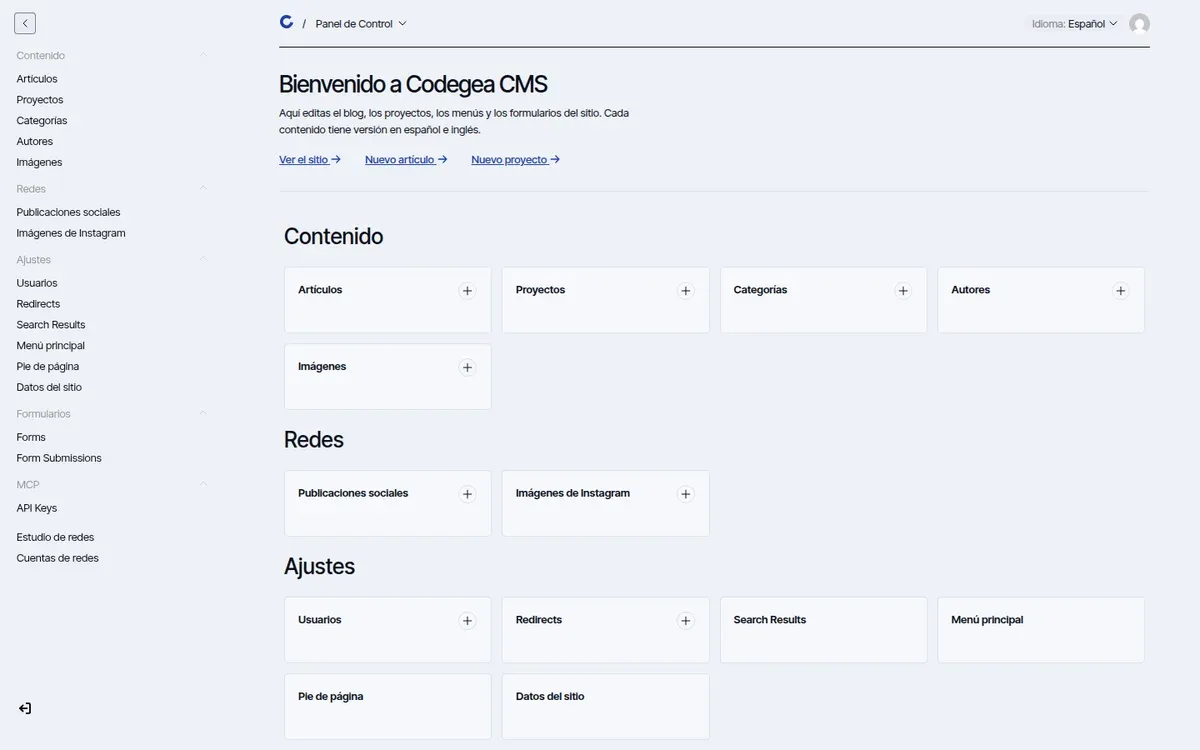
Notice Forms, Form Submissions, Search Results and API Keys. Those names come from the plugins (forms, search, MCP) and are neither translated nor renamed. They can be changed with each plugin's override options, and on this site it is a pending task. We leave it in the article because it happens in every project: white-labeling looks more like a to-do list than a switch.
What we learned
- Start with the CSS. With a few variables it already looks like another product. The logo and welcome block polish it; the color convinces.
- Test dark mode and the language you don't use. The bugs are there.
- Check the browser tab, the password reset email and the share image. Those are the places where the original name sneaks in.
- Write the rule down. We put it in the repository's
CLAUDE.md: "don't reintroduce references to Payload in visible text". Without that, the next change puts them back.
When it isn't worth it
If only you use the panel, or the client barely logs in, the tab title and the colors are enough. White-labeling pays off when someone lives with the panel every day. And there is no need to redo anything Payload already does well: content editing, permissions or search.
To keep going with the CMS, see how we extended it with a whole feature in a studio for publishing to social networks, and why we chose it in Payload vs Strapi vs Directus.
Written by
Derian Pinto
Founder & Full Stack Developer
Founder of Codegea. Builds custom websites, stores and platforms, and integrates and supports Arc XP for media companies.